
How to Prepare a DXF File for CNC Laser Cutting
Download the printable DXF checklist →
Draw your part flat and at full size. Close the edge and each hole you want to cut. Take out extra lines. Save the DXF, then open it and check a size you know.
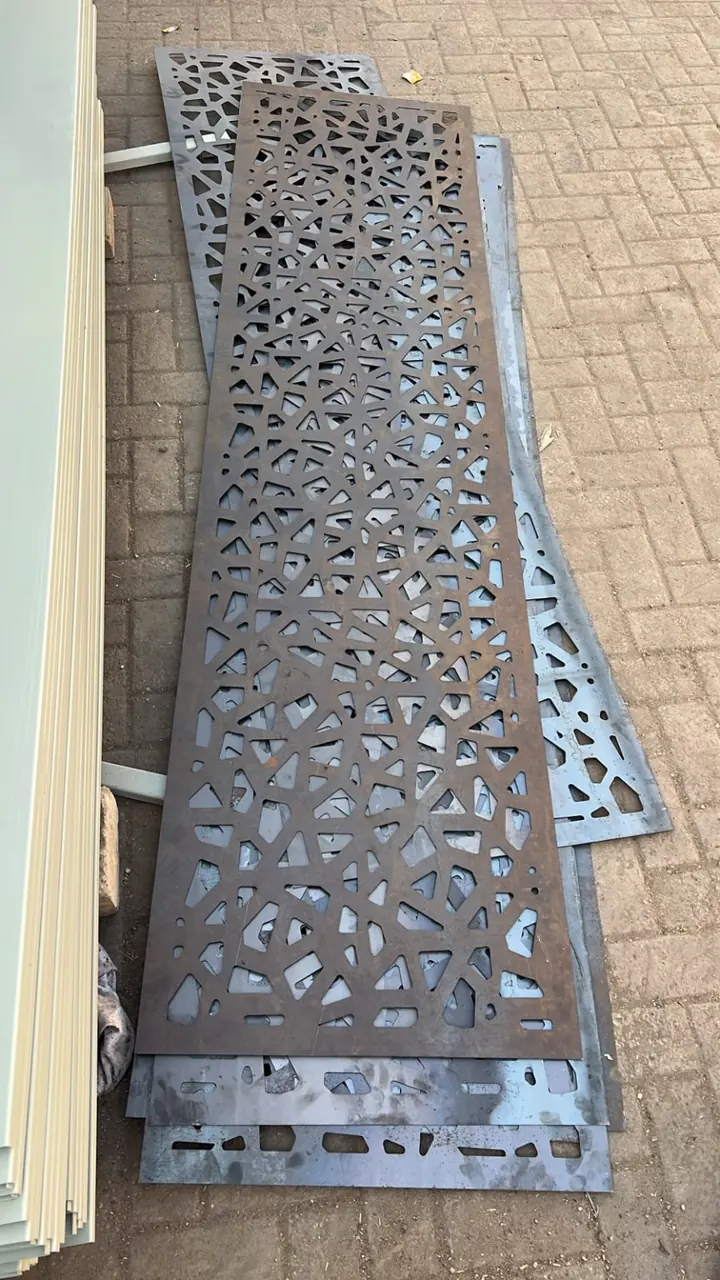
DXF stands for Drawing Exchange Format. This guide is for flat parts cut from sheet. Will the part bend? Send the flat shape and a view of the bent part. Ask the shop what it needs for tube work.
Jump to the mounting plate example.
Step 1. Set the units and scale
Draw at 1:1 scale. Put the real size in the file. Check an edge with the CAD tool. If the units are mm, a 120 mm edge must read 120. A print may shrink to fit, so check the size in the file.
Name the units you used, such as inches. If you get a file from a client, check a known size first. If you change the units, check the size once more.
Step 2. Close each cut path
Make a copy of the drawing. Keep the flat part in one plane. Take out the border, notes and size marks from the cut lines. Keep those notes on a PDF.
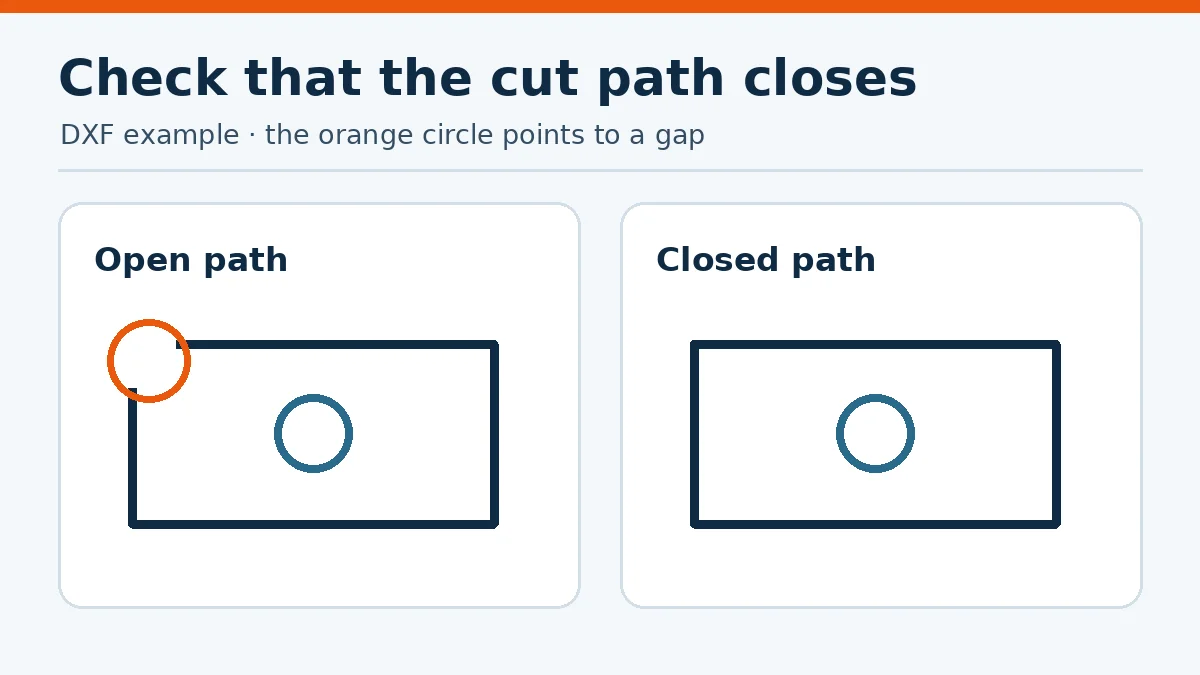
The part edge must form one closed loop. Each hole or slot cut through the sheet needs a closed loop too. Zoom in where two lines meet to find gaps that are hard to see. Count the holes in both files. The counts should match.
Step 3. Take out lines drawn twice
Two lines in the same spot can look like one. Check edges, arcs and holes for that fault. AutoCAD has a tool for this. It is called OVERKILL. Use it on a copy. Check the shape when the tool is done. Autodesk guide to duplicate lines
Keep marks and cut lines apart. Ask the shop how to send text or marks. Will the text cut through? Check which parts must stay in place.
Step 4. Export and check the DXF
Keep the CAD file you can still edit, and ask the shop which DXF type it can open. Export a copy and open it on its own. Use the list below.
| Check | What to look for |
|---|---|
| Size | One known edge has the right length |
| Holes and slots | Each size and count matches the PDF |
| Loops | The part edge and through-cut holes are closed |
| Lines | No extra paths or notes on cut layers |
| Version | Both files show the same revision |
Small holes and the cut width
Kerf is the width of the cut. Send the size you want the part to be. Do you need space for the cut? Ask the shop first. Mark small holes and thin slots. Mark any tight fit too. Kerf and file setup reference
Worked example. Send a mounting plate for a quote
This sample is for one flat plate design. Check the wide edge and count all four holes before you send it.
| Field | Sample entry |
|---|---|
| File | Mounting-Plate-120x80-Rev-B.dxf |
| Part size | 120 × 80 mm |
| Through holes | 4 holes, each 8 mm wide |
| Metal and count | Mild steel, 3 mm thick, 25 pieces |
| Reference | Rev B PDF with hole locations |
Quick questions
What if I have no DXF?
Send a sketch with sizes. Add the metal, sheet thickness and count. See which files we can take. CNC laser cutting
Can I send more than one part?
Ask how the shop wants each part sent. If the parts use sheets of a different thickness, name the files and list the count for each.
Send your files for a quote
Send both files with the same revision on each. List the metal, sheet thickness, count and finish. Say what to cut or mark.